Digital clutter can be just as distracting as a messy room. An overflowing inbox, unused apps, duplicate photos, and scattered files make it harder to find what you need and easier to feel overwhelmed. The good news is that you do not need to reorganize everything in one day.
Digital decluttering is the process of removing what you no longer need and creating simple systems for the information you want to keep. With a few focused sessions and some practical habits, you can make your devices easier to use and maintain.
Start With a Simple Digital Inventory
Before deleting anything, take a quick look at the digital spaces you use most. This helps you understand where the biggest problems are and prevents you from spending too much time on minor details.
Make a list of your main digital areas, such as:
– Computer files and folders
– Phone apps
– Email accounts
– Photos and videos
– Cloud storage
– Downloads folder
– Online accounts and subscriptions
– Browser bookmarks
– Notifications
Next, choose one area to work on first. Email may be the most urgent for one person, while a crowded phone or unorganized computer may be more distracting for someone else.
Avoid trying to fix every category at once. Completing one small project can build momentum and make the next task feel easier.
Organize Your Computer Files
A clear file system saves time and reduces frustration. Start by reviewing your desktop and downloads folder, since these areas often collect files quickly.
Delete files you no longer need, then move important items into clearly named folders. You might create broad categories such as:
– Work
– Personal
– Household
– Projects
– Photos
– Records
– Reference
Within each folder, add subfolders only when they are useful. Too many layers can make files difficult to locate.
Use Consistent File Names
A useful file name should tell you what the file is without requiring you to open it. Include details such as the topic, project, or date.
For example:
– `Home Inventory 2026`
– `Travel Plans Seattle`
– `Project Notes September`
– `Warranty Kitchen Appliance`
Choose one date format and use it consistently. A format such as `2026 09 09` keeps files in a logical order and is easy to read.
After organizing, create a temporary folder called “Sort Later” if you find files that need more attention. Set a reminder to review it so it does not become a permanent storage area.
Clean Up Your Phone
Phones often become cluttered because downloading an app is easy and removing one is easy to postpone. Review every app and ask whether it still serves a clear purpose.
Delete apps that you:
– Have not used in several months
– Downloaded for a one-time event
– No longer need for work or school
– Can replace with a website or another app
– Keep only because you might use them someday
You can also move less frequently used apps away from your main screen. Keep your first screen reserved for tools you use regularly, such as messages, maps, calendars, or notes.
Review your widgets and shortcuts as well. Remove anything that adds visual noise without helping you complete a task.
Manage Photos and Videos
Photo libraries can grow quickly, especially when devices automatically back up every image. Start with the easiest items to remove:
– Blurry photos
– Accidental screenshots
– Duplicate images
– Unneeded downloads
– Old memes and temporary images
– Videos you no longer want
Do not feel pressured to organize every photo perfectly. Focus first on removing obvious clutter. Then create a small number of albums for important categories, such as family, travel, home projects, or pets.
If you use cloud storage, check whether photos are being saved in more than one location. Keeping multiple copies can use storage space quickly. At the same time, avoid deleting a copy until you know another copy is safely available.
Tame Your Email Inbox
You do not need to read every old email to create a cleaner inbox. Begin by searching for common sources of clutter, including newsletters, store messages, automated alerts, and outdated notifications.
Unsubscribe from messages you no longer read. For useful newsletters, consider creating a folder or label called “Read Later.” Be realistic about whether you will actually review it.
Use search and bulk actions to handle groups of messages. For example, you may be able to archive old notifications or delete several promotional emails at once. Keep important records, but remove messages that no longer have a purpose.
Create a Few Helpful Folders
Use a small number of folders or labels based on how you work. Possible categories include:
– Action needed
– Receipts
– Travel
– Personal
– Work
– Reference
Avoid creating a separate folder for every topic. Search tools are often faster than browsing through a long list of folders.
Review Online Accounts and Subscriptions
Over time, people often create accounts for services they no longer use. Review your saved passwords, account settings, and subscription lists to identify old or unnecessary accounts.
Close accounts that you no longer need when the service provides a clear option to do so. For accounts you want to keep, update your contact information and review notification preferences.
This is also a good time to check where you receive promotional messages. Adjust communication settings so you get only the updates you find useful.
Simplify Notifications
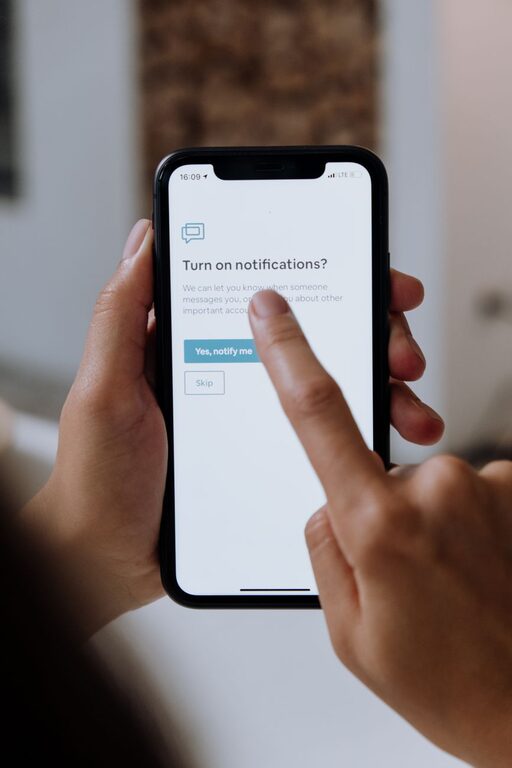
Notifications compete for your attention throughout the day. Most apps do not need permission to interrupt you.
Review notification settings on your phone, computer, and browser. Turn off alerts that are not important, such as:
– Promotional offers
– Game updates
– Social activity that can wait
– Repeated reminders
– News or content alerts you rarely open
Keep notifications for time-sensitive messages, calendars, safety tools, and other services that support your daily routine. You can also use a scheduled summary or a quiet mode to reduce interruptions during work, rest, or personal time.
Organize Browser Bookmarks and Tabs
An overcrowded browser can make simple tasks feel harder. Close tabs you no longer need and save only pages that you expect to revisit.
Review your bookmarks and delete broken links, duplicates, and outdated resources. Create a few broad folders, such as:
– Work
– Learning
– Shopping
– Travel
– Household
If you often keep tabs open as reminders, replace them with a task list or note. A browser tab is not a reliable to-do system.
Build a Maintenance Routine
Digital decluttering works best when it becomes a regular habit. Schedule a short review every week or month instead of waiting until everything feels unmanageable.
A weekly routine might include:
– Emptying the downloads folder
– Removing unused apps
– Deleting unnecessary screenshots
– Processing important email
– Reviewing new files
– Closing old browser tabs
Once a month, review cloud storage, subscriptions, and account settings. Keep these sessions short and focused. Even 15 minutes can prevent digital clutter from building up again.
Make Future Clutter Less Likely
The best digital organization system is one you can maintain. Before downloading a new app, saving a file, or subscribing to a service, pause and ask whether it will be useful later.
Use these simple habits:
– Save files in their proper folder immediately
– Give documents clear names
– Delete temporary files after a project ends
– Unsubscribe when a newsletter stops being useful
– Review app permissions and notifications
– Keep one main location for each type of information
Digital decluttering is not about creating a perfect system. It is about making your devices calmer, more practical, and easier to navigate. Start with one small area, remove what no longer serves you, and create habits that help you stay organized.