
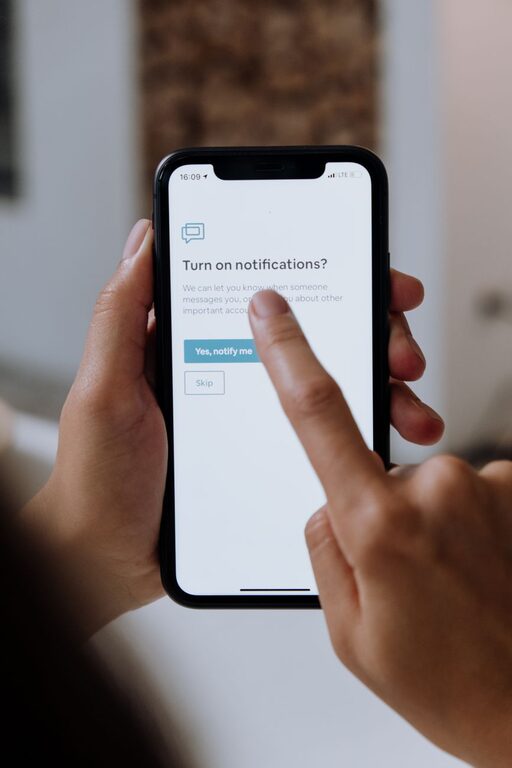
Notifications are designed to get your attention, but not every alert deserves an immediate response. When messages, reminders, app updates, and news alerts appear throughout the day, it can become difficult to focus on work, relax, or enjoy time with others.
Setting notification boundaries can help you decide when and how you want to be interrupted. The goal is not to ignore everything. It is to create a system that keeps important information visible while reducing unnecessary distractions.
Start by noticing what interrupts you
Before changing your settings, pay attention to the notifications you receive during a typical day. Notice which alerts are useful, which are distracting, and which you rarely open.
For a day or two, consider keeping a simple list of:
– Apps that send the most alerts
– Notifications you respond to right away
– Alerts you usually ignore
– Times when notifications interrupt your focus
– Messages that can wait until later
This quick review can reveal patterns. For example, you may find that most alerts are not urgent, or that certain apps send repeated reminders that add little value.
Once you understand the problem, it becomes easier to choose practical boundaries instead of turning off every notification at once.
Separate essential alerts from optional ones
Not all notifications have the same level of importance. Grouping them into categories can make your settings easier to manage.
Essential notifications
These may include:
– Direct messages from close contacts
– Calendar reminders
– Delivery updates you are expecting
– Security alerts
– Time-sensitive work messages
Keep only the alerts that genuinely help you respond on time. Even within this group, you may be able to limit alerts to specific people, events, or situations.
Optional notifications
These often include:
– Promotional messages
– Social media activity
– Game updates
– App recommendations
– New content alerts
– Frequent reminders to return to an app
You can usually turn these off without missing anything important. If you still want updates, consider receiving them in a daily summary instead of as individual alerts.
Turn off notifications by default for new apps
Many apps request notification access during setup. It can be tempting to tap “Allow” quickly, but this may lead to a steady stream of alerts later.
When installing a new app, ask:
– Do I need to know about updates immediately?
– Will this alert help me complete a task?
– Can I check this app manually when I choose?
– Would a scheduled summary be enough?
If the answer is no, select “Don’t Allow” or choose a less intrusive option. You can always enable notifications later if you change your mind.
This small habit prevents unnecessary alerts from building up over time.
Use scheduled notification summaries
Many phones and apps allow you to receive selected notifications in a summary at set times. This option is useful for alerts that are informative but not urgent.
You might schedule summaries:
– Once around midday
– Once in the early evening
– After your main work or study period
– At another time that fits your routine
A summary reduces the number of interruptions while still giving you access to updates. It also helps create natural points in the day for checking information rather than reacting to every alert as it arrives.
Create focus periods
A focus period is a planned block of time when notifications are limited. You can use one for work, reading, exercise, hobbies, meals, or personal projects.
Start with a manageable period, such as 30 minutes. During that time, silence nonessential alerts and place your phone out of sight if possible. As this becomes more comfortable, you can extend the period.
Before starting, decide which exceptions are allowed. For example, you may want calls from selected contacts to come through while silencing everything else.
Clear rules make focus periods easier to maintain:
- Choose the activity you want to protect.
- Set a start and end time.
- Allow only important contacts or alerts.
- Check messages when the period ends.
- Adjust the settings if the plan feels too strict or too loose.
Customize alerts for different times of day
Your notification needs may change throughout the day. A single setting may not work well for every situation.
Consider creating separate routines for:
– Morning preparation
– Work or study hours
– Evening relaxation
– Meals and social time
– Sleep
During the day, you may allow work or calendar alerts. In the evening, you might silence most app notifications and allow only personal messages. At night, a sleep setting can prevent alerts from lighting up your screen or producing sounds.
The best schedule is one that supports your routine rather than making it harder to follow.
Change the way notifications appear
You do not always need to turn off an app completely. You can often reduce its impact by changing how alerts appear.
Try adjusting:
– Sound
– Vibration
– Lock screen previews
– Banners or pop-ups
– Badges showing unread counts
– Repeated alerts
– Notification grouping
For example, you might keep an alert visible in a notification center but remove its sound and pop-up. This lets you review it later without interrupting your current activity.
Removing badges can also help. A small number on an app icon may create pressure to check it, even when there is no real need to respond.
Set communication expectations
Notification boundaries work better when other people understand them. If you are often unavailable during certain periods, let coworkers, friends, or family members know when you usually respond.
A simple message might say:
> I check messages during the morning, afternoon, and early evening. If something is urgent, please call.
You do not need to explain every detail. A clear response schedule can reduce pressure and help others know what to expect.
It may also help to avoid treating instant replies as the standard. A message can be important without requiring an immediate response.
Keep your phone out of reach during focused tasks
Settings are useful, but physical distance can make boundaries easier to follow. Place your phone in a drawer, bag, or another room during tasks that require concentration.
If you need access to your device, try placing it face down and out of your direct line of sight. You can also use a separate clock or timer so you do not need to check your phone to see the time.
Reducing visual cues can be just as helpful as silencing sounds.
Review your settings regularly
Notification habits change as your apps, responsibilities, and routines change. Set aside a few minutes each month to review your settings.
Ask yourself:
– Which alerts have helped me recently?
– Which alerts have interrupted me unnecessarily?
– Are there apps I no longer use?
– Do my current focus periods fit my schedule?
– Are my evening and sleep settings still working?
Delete unused apps, remove unnecessary permissions, and update your notification groups. Small adjustments can keep your system useful without requiring a complete reset.
Make boundaries realistic
A notification plan does not need to be perfect. If you silence everything and later turn all alerts back on, the system may be too restrictive for your needs.
Start with one or two changes, such as turning off promotional alerts and creating a daily focus period. Once those habits feel natural, make another adjustment.
The purpose of notification boundaries is to give you more choice over your attention. By deciding what deserves an interruption, when alerts can appear, and how quickly you need to respond, you can stay connected while creating more room for focused and uninterrupted time.